Extract data from images and PDFs
Upload JPG, PNG, WEBP or PDF documents. OCR reads source text and AI organizes recognized information into fields you can review. PDF extraction currently covers the first four pages of each file.

Stop copying information from images and PDFs into spreadsheets by hand. Rowraft uses AI OCR to extract document fields, lets you create your own Excel column templates, and processes batches of files into organized Excel workbooks.
20 free starter tokens for eligible new accounts • No monthly subscription required • Purchased tokens never expire
Rowraft combines OCR with AI-powered field extraction. Start with a document, decide which information belongs in your spreadsheet, then reuse that structure for similar files.
Upload JPG, PNG, WEBP or PDF documents. OCR reads source text and AI organizes recognized information into fields you can review. PDF extraction currently covers the first four pages of each file.
Rename extracted fields to match the spreadsheet you need. Keep important fields, remove unwanted ones, and choose consistent column headings rather than accepting a fixed export layout.
When a document contains multiple services, charges or descriptions, Rowraft can identify recognized entries as separate extracted fields. Map each field to its own spreadsheet column when building your template.
Save a field-to-column mapping for a familiar document type. Apply that template to later batches without redefining every column from the beginning.
Upload multiple images or PDFs, select a saved template and follow the processing status. Check completed and failed files before downloading the available results.
Download an XLSX workbook from your template-based batch results. Use consistent columns to sort, filter and review the extracted data in Excel.
A single receipt can contain several services with different amounts. Rowraft can extract each recognized description and amount individually. You choose which fields to keep and how their column names should appear in Excel.
Illustrative example — source document → named fields → spreadsheet columns
Three services. Six fields to map.
| Example detected field | Example value | Your column name |
|---|---|---|
Group_1_Description | Consultancy Fee | service_one |
Group_1_Amount | 61,942 | service_one_amount |
Group_2_Description | Software License | service_two |
Group_2_Amount | 60,273 | service_two_amount |
Group_3_Description | Maintenance Services | service_three |
Group_3_Amount | 111,038 | service_three_amount |
Example values illustrate column mapping, not guaranteed extraction across every document. These fields become separate spreadsheet columns; the export does not automatically create one row per service.
Save the mapping as a template and reuse the same column structure across your next batch of similar documents.
Create your first template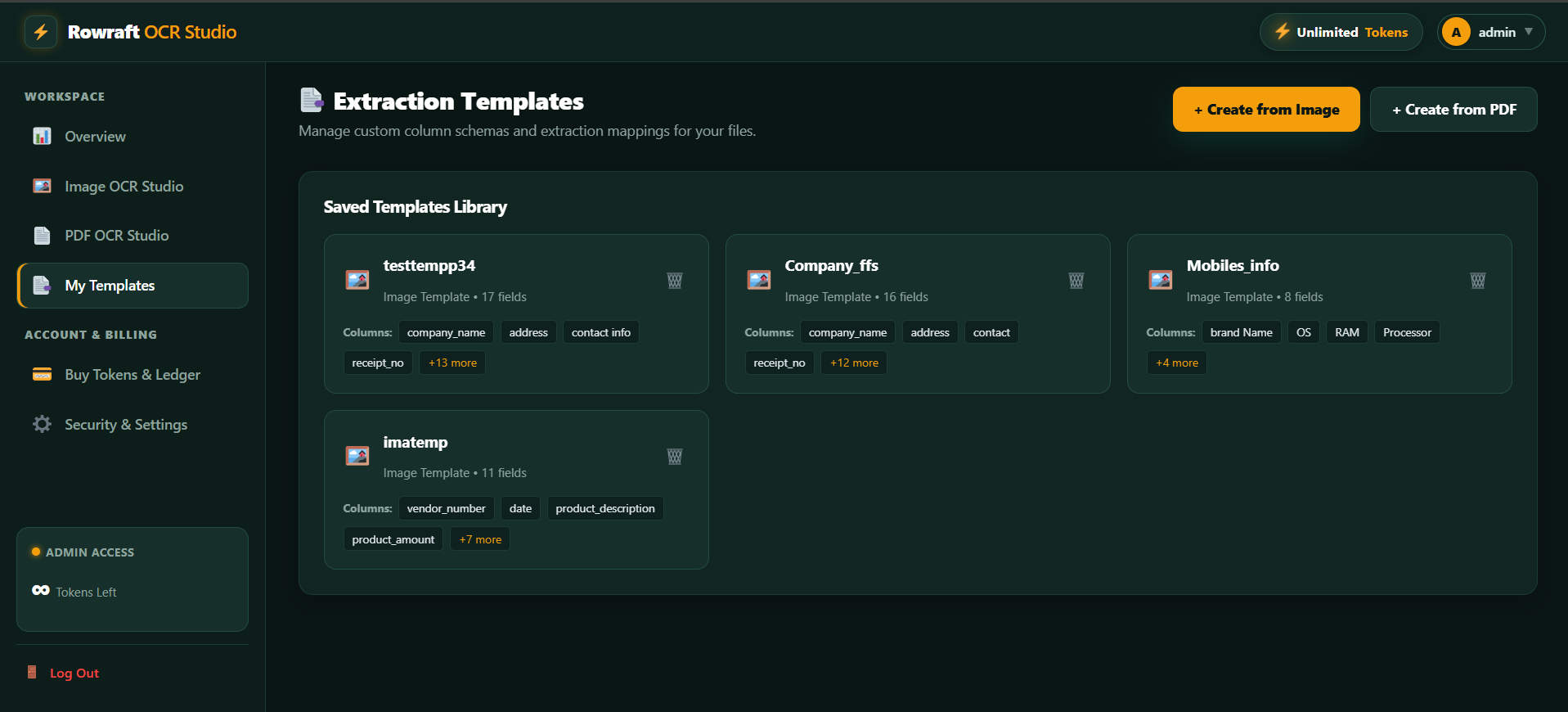
Use Rowraft with readable images, scanned PDFs and recurring business documents. The fields available depend on the content, source quality and template you choose.
Capture supplier names, invoice dates, reference numbers, totals and individual service or charge descriptions where recognized. Organize the information into your preferred spreadsheet columns.
Explore custom column mappingExtract merchant details, dates, amounts and multiple described charges from receipt images. Review each field and use a saved template to prepare similar expense documents in bulk.
See the receipt extraction workflowUse OCR to capture text and fields from image-based PDFs without copying them manually. Each PDF extraction processes its first four pages, so split longer documents when needed.
Explore PDF extractionOrganize recognizable names, references, dates and other fields from supported forms or recurring records. Start with a representative sample to check whether the layout works for your use case.
Learn about saved templatesExtract a sample first. Save the field mapping you want. Use that template when you are ready to process a batch.
Upload a JPG, PNG or WEBP photo or scan. Examine the fields Rowraft detects, including distinct repeated descriptions or amounts where available. Use the result to define columns for a reusable template.
Use a representative image or scan to build a template. Consistent column names make the next batch easier to work with.
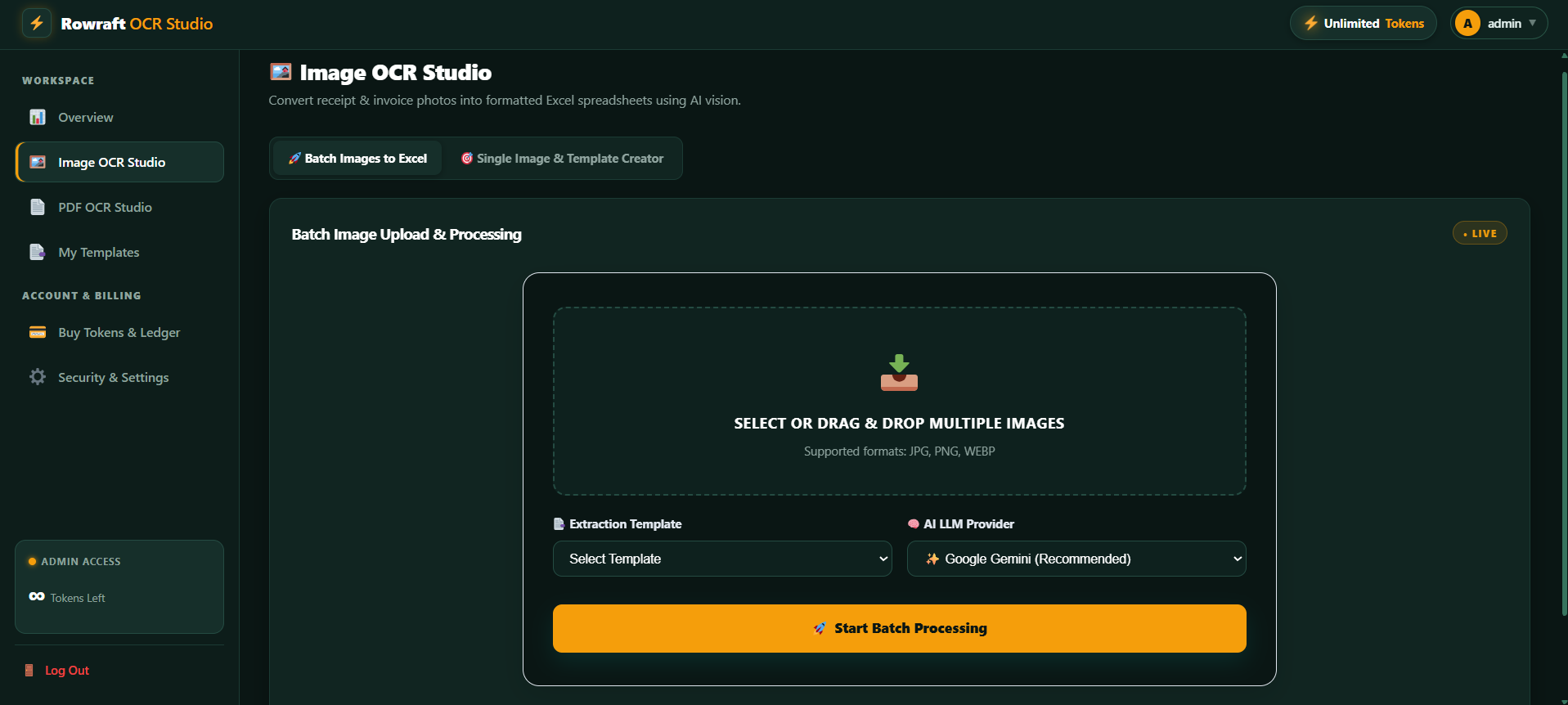
Read text and recognized fields from PDFs, including image-based pages. Rowraft processes the first four pages of a PDF; split longer files before uploading.
Use readable, upright scans with all relevant fields visible. Check dates, amounts and identifiers against the original after extraction.
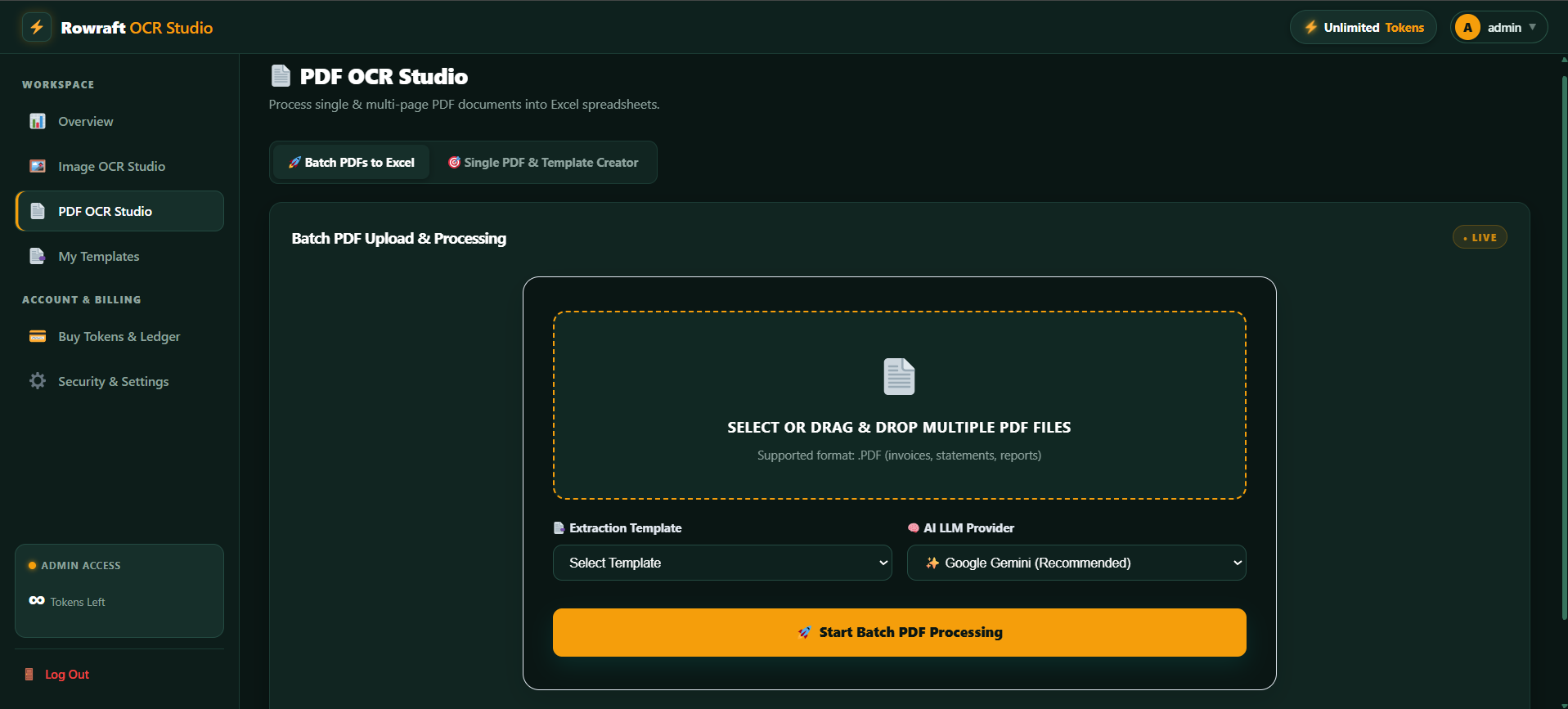
Choose supported images or PDFs and apply your saved field-mapping template. Track completed and failed files, then export the available structured results to a single Excel workbook.
Keep the fields your team needs in its spreadsheet. Review the exported workbook and any failed files before treating a batch as complete.
Build the spreadsheet structure once, then use it for recurring documents.
Upload a readable document image or a PDF. Rowraft processes the first four pages of each PDF and uses OCR and AI to identify available fields, including repeated entries where detected.
Review the extracted information. Keep or remove fields, rename the column headings and save your mapping as a reusable template.
Upload a batch of similar images or PDFs and select your saved template. Track completed and failed processing results.
Export the available batch results as an XLSX workbook. Review important names, dates, amounts and individual fields against the original documents before using the spreadsheet.
Organize invoice and receipt fields without repeatedly typing the same information into spreadsheets.
Extract names, dates, reference numbers and other recurring fields from business paperwork.
Convert collections of readable images and PDFs into structured spreadsheet data using saved column mappings.
Prepare extracted data for review and downstream spreadsheet workflows while keeping manual verification in the process.
One image or PDF extraction uses one token. Accepted bulk jobs use one token per uploaded file. Top up when you need more; purchased tokens never expire.
3,000 document tokens
600 document tokens
Free starter tokens are subject to account eligibility and anti-abuse checks. Review the job status and available results after processing a batch.
File formats, custom templates, repeated fields and bulk Excel output.
AI data entry automation reads source documents and organizes information into structured fields, reducing the need to retype each value manually. Rowraft combines OCR and AI extraction with user-defined spreadsheet templates and bulk Excel exports.
Yes. Rowraft accepts JPG, PNG and WEBP images as well as PDF files. It can read recognizable text and fields from clear photos and scans. For PDFs, it processes the first four pages of each file.
Yes. After extracting a sample document, you can keep or remove recognized fields and rename the corresponding spreadsheet columns. Save that mapping as a template for similar files.
When recognized in the source document, multiple service descriptions and amounts can appear as separate fields. Assign individual column names, such as service_one and service_one_amount. The export does not automatically create a separate spreadsheet row for each service.
Yes. Create a template from a representative document, then process a batch of supported files using that saved mapping. Download the available completed results in a consolidated XLSX workbook. Check the job status for failed files.
No. A saved template can be reused across similar documents. Because layouts and field availability vary, start with a representative example and review outputs when you use a template with new document formats.
OCR reads text from images or scanned PDFs. AI extraction organizes recognized content into named fields. Your saved template maps selected fields to spreadsheet columns, and template-based batch export produces the Excel workbook.
An accepted individual image or PDF extraction uses one token. Accepted bulk jobs use one token per uploaded file. Eligible new accounts receive 20 starter tokens, subject to eligibility and anti-abuse checks. Purchased tokens do not expire.
Results depend on readability, document layouts and field recognition. AI and OCR can make mistakes, particularly with unclear scans or complicated forms. Compare important names, identifiers, dates and amounts with the originals before relying on the spreadsheet.
Rowraft uses structured JSON data internally as part of extraction. The downloadable spreadsheet output is an XLSX workbook generated from template-based batch results. A direct JSON download is not offered in the current workflow.
Upload a sample image or PDF, choose the columns you need, and create a reusable template for your next batch. Let Rowraft help with the repetitive extraction while you stay in control of the final data.
Start with a free account Buy Rowraft PluginStarter tokens for eligible new accounts • No monthly subscription required