
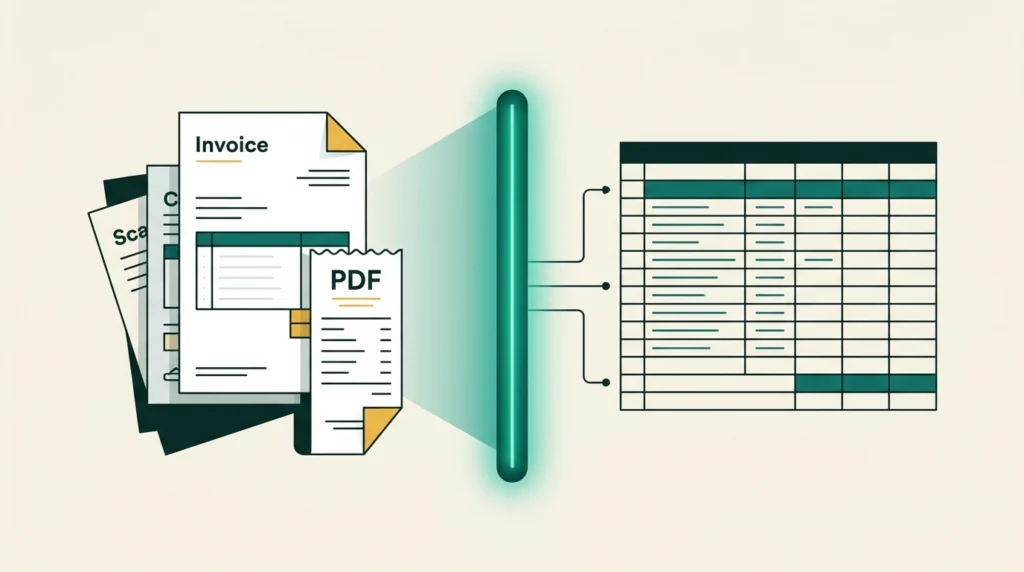
If you handle invoices, receipts, or vendor statements every week, you already know the most boring part of the job: opening a PDF on one half of your screen, opening Excel on the other, and typing out dates, invoice numbers, and totals row by row.
And if you’ve ever tried a standard “PDF to Excel” converter to save time, you probably ran into a different headache. Instead of saving you an hour, it dumps everything into merged cells, shifts numbers into the wrong columns, and leaves you spending 20 minutes cleaning up the spreadsheet anyway.
The real problem isn’t reading text off a page anymore—modern OCR does that fine. The problem is structure. You don’t just want text out of a PDF; you want specific fields to land in your exact Excel columns every single time.
Here is how to actually automate PDF-to-Excel data entry using reusable column templates, whether you are dealing with one receipt or a folder of 50 scanned invoices.
Why Generic PDF-to-Excel Tools Break Financial Spreadsheets
Most free converters treat a PDF like a visual grid. If Vendor A puts the invoice date in the top right and Vendor B puts it under the billing address, a generic converter generates two completely different table layouts.
When you try to combine a month’s worth of documents into one workbook, you end up with:
- Unwanted clutter: Terms and conditions, footer addresses, and page numbers mixed into your data rows.
- Broken column alignment: Amounts shifting one column to the left whenever a receipt includes a discount or extra tax line.
- Zero consistency across batches: Every file needs manual copy-pasting before you can run a
SUMor pivot table.
To fix this, you need a workflow where you define the spreadsheet schema once, and the tool maps every new document into those exact columns.
Step-by-Step: How to Extract Invoice Data from PDFs into Custom Excel Columns
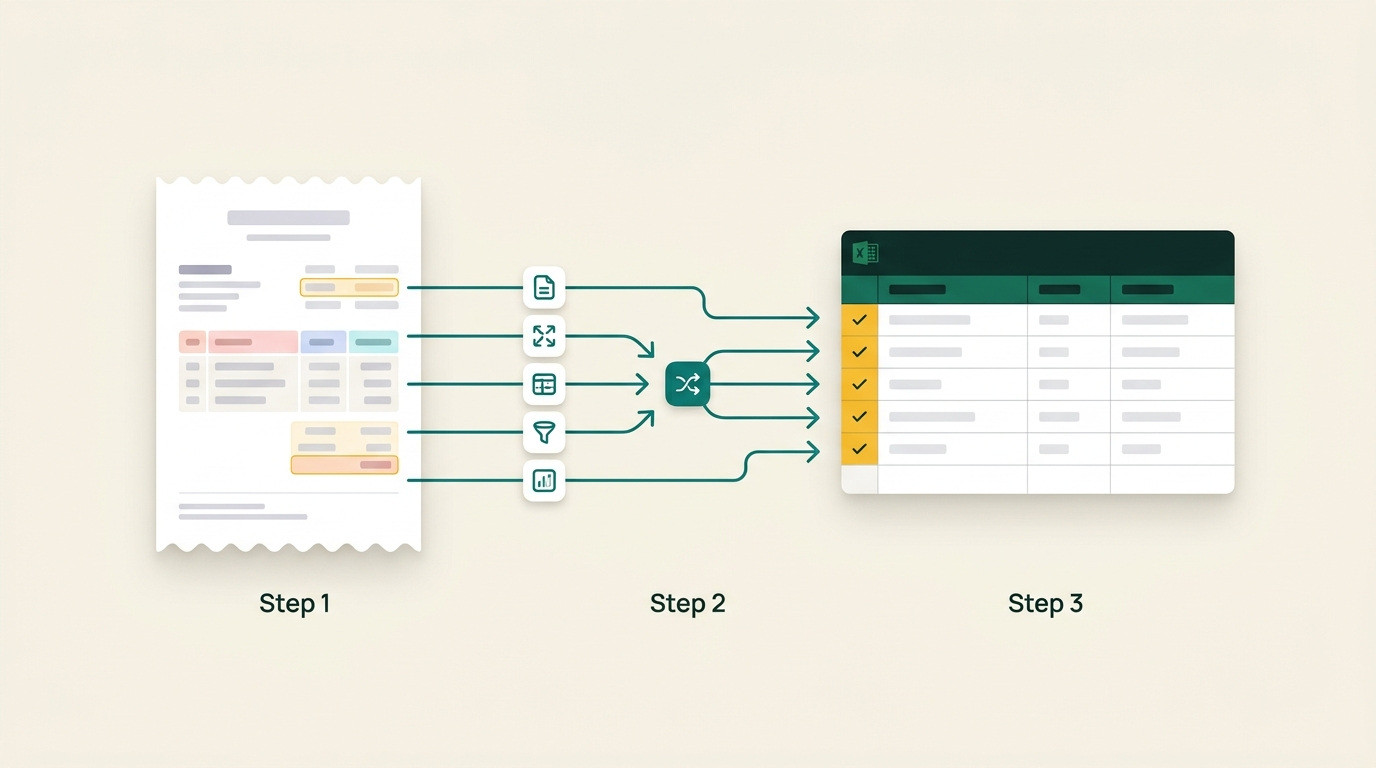
Instead of converting every file blindly, the cleanest approach is a two-part workflow: build a template from one sample document, then run your batch through it.
1. Start with one representative sample
Pick a clear invoice, receipt, or scanned PDF (or a JPG/PNG/WEBP photo) that looks like the rest of the batch you need to process.
In Rowraft, you upload that single sample inside the Single Image & Template Creator or Single PDF OCR tab. For PDFs, Rowraft reads up to the first four pages of the file, runs OCR to capture the text, and uses AI field extraction to pull out structured key-value pairs like:
company_namereceipt_noorinvoice_numberdatesubtotal,tax, andtotal_amount
2. Handle repeated charges or services cleanly
Real invoices rarely have just one line. A vendor receipt might list three separate items—say, Consultancy Fee, Software License, and Maintenance Services—each with its own amount.
When Rowraft recognizes repeated entries on a document, it separates them into distinct numbered fields (like Group_1_Description, Group_1_Amount, Group_2_Description, Group_2_Amount). You can keep the ones you care about and remove anything irrelevant with a single click.
3. Rename the headers to match your Excel sheet
This is the step that saves the most cleanup time later. Instead of accepting generic field names, rename each extracted field directly to the column heading your accounting sheet expects—for example, changing Group_1_Description to service_one and Group_1_Amount to service_one_amount.
Once the columns look right, give the mapping a name (for example, Monthly_Vendor_Invoices) and save it.
4. Batch-convert multiple PDFs or images into one XLSX workbook
Now you don’t have to touch those columns again. Switch to the Batch Processing tab, select or drag-and-drop your folder of invoices or receipts, pick your saved template, and start the job.
You’ll see a live queue showing progress as each file finishes. When the batch completes, download a single consolidated .xlsx workbook where every document sits cleanly in its own row under your exact column headings.
A Few Practical Tips Before Running a Large Batch
Even with solid OCR and AI extraction, garbage in still means garbage out. A few quick habits keep your spreadsheets accurate:
- Check the first 4 pages rule on PDFs: If you have a 15-page statement where the summary table is on page 8, split the PDF first so the relevant pages are within the first four pages.
- Use upright, readable scans: Blurry photos, heavy shadows, or skewed mobile scans can trip up numbers like
8vs3or1vs7. - Keep a quick human review in the loop: Automation eliminates the typing, not the final check. Before importing an exported workbook into your accounting software, spot-check key dates, invoice IDs, and totals against the original files.
- Test with a small batch first: Run 3 to 5 documents through a new template before uploading 50 files at once so you know the field names align with what you expect.
Stop Retyping Spreadsheets by Hand
You shouldn’t have to pay for a bloated enterprise AP suite—or lock yourself into another monthly subscription—just to get clean numbers out of PDFs and receipt photos.
Rowraft runs on a simple pay-as-you-go token model (one token per accepted single extraction or per file in a batch job, and purchased tokens never expire). Eligible new accounts also start with 20 free starter tokens, which is plenty to test a sample document, save your first custom column template, and export a real batch to Excel.